Magi AI Video Generator

Choose MAGI-2 or another video model, describe your scene or add a reference image, and see the credit cost before you generate.

Video settings
Model and output
…

Sign in to generate from text or images with transparent per-clip quotes

Magi Studio video examples

Four curated visual studies. Pick a film to inspect its framing, camera direction, and prompt — or load any prompt straight into the studio.

Choose a film01 04
Choose a film
01Continuous shot

Walk across mirrored salt flats at dawn

A low tracking shot follows a cobalt coat across mirrored salt flats as wind lifts the hem and dawn reflections ripple underfoot.
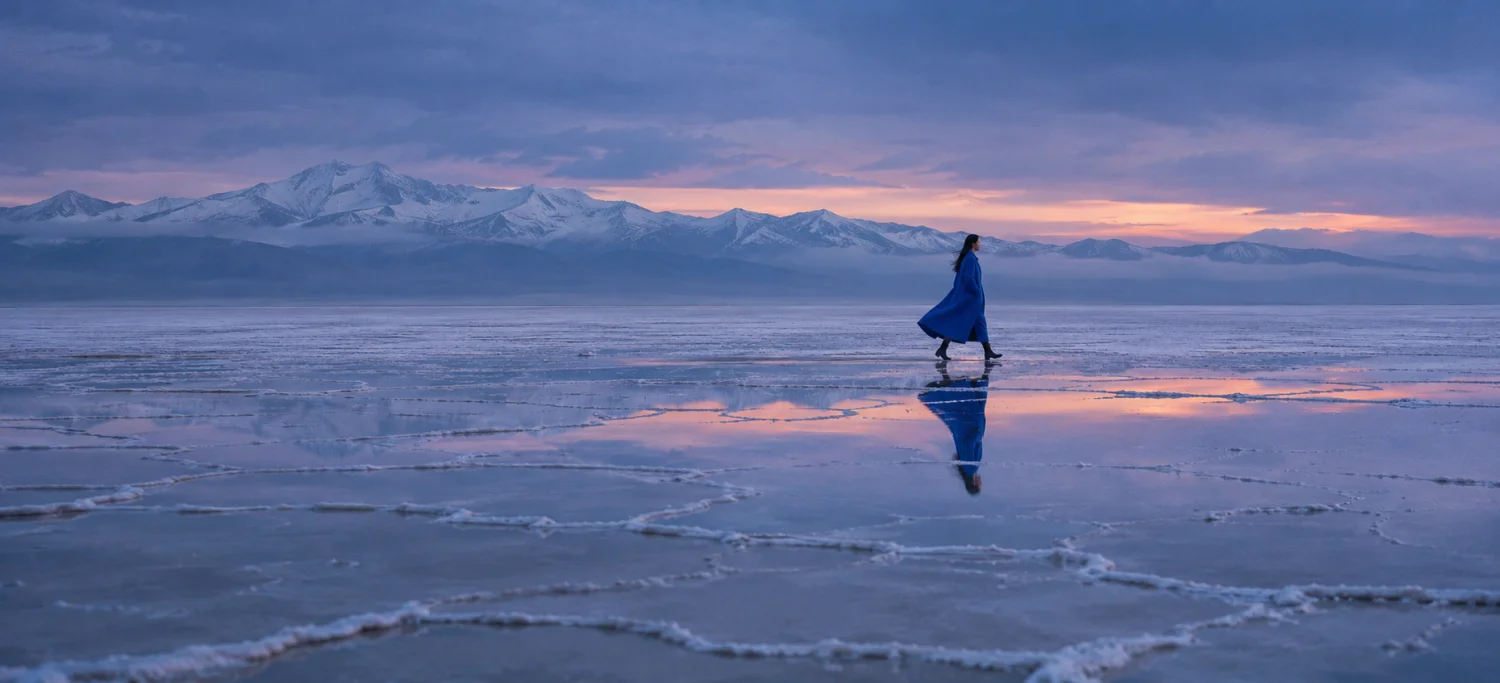
A figure in a blue coat reflected on a salt flat at dawn
01Dawn salt-flat keyframe
Magi Studio5s

Watch forFollow the reflection across the mirrored water as the camera glides low.
Picture and sound

What fits in a studio take?

Use MAGI-2 for synchronized picture and sound. Choose a length that fits the scene and give each beat a clear subject, movement, and sound cue.

  • 01

    Dialogue with a listener in the room

    Describe who speaks, what shifts in their posture, and how the camera holds after the line. Paired audio generation lets you judge pacing and expression in one pass.

  • 02

    Sound with a source on screen

    Anchor ambience and foley to visible contact — rain hitting asphalt, a glass placed on timber, or a soft click before a camera move makes every cut feel grounded.

  • 03

    Composition that survives a cut

    Choose a frame that fits your scene, such as 16:9 widescreen, 9:16 vertical, or 1:1 square. State where the subject enters and what stays visible when the lens pushes closer.

Reference direction

Bring a still frame into motion

Upload a keyframe to anchor subject identity, palette, and atmosphere — then let your prompt direct the camera sweep and environmental movement.

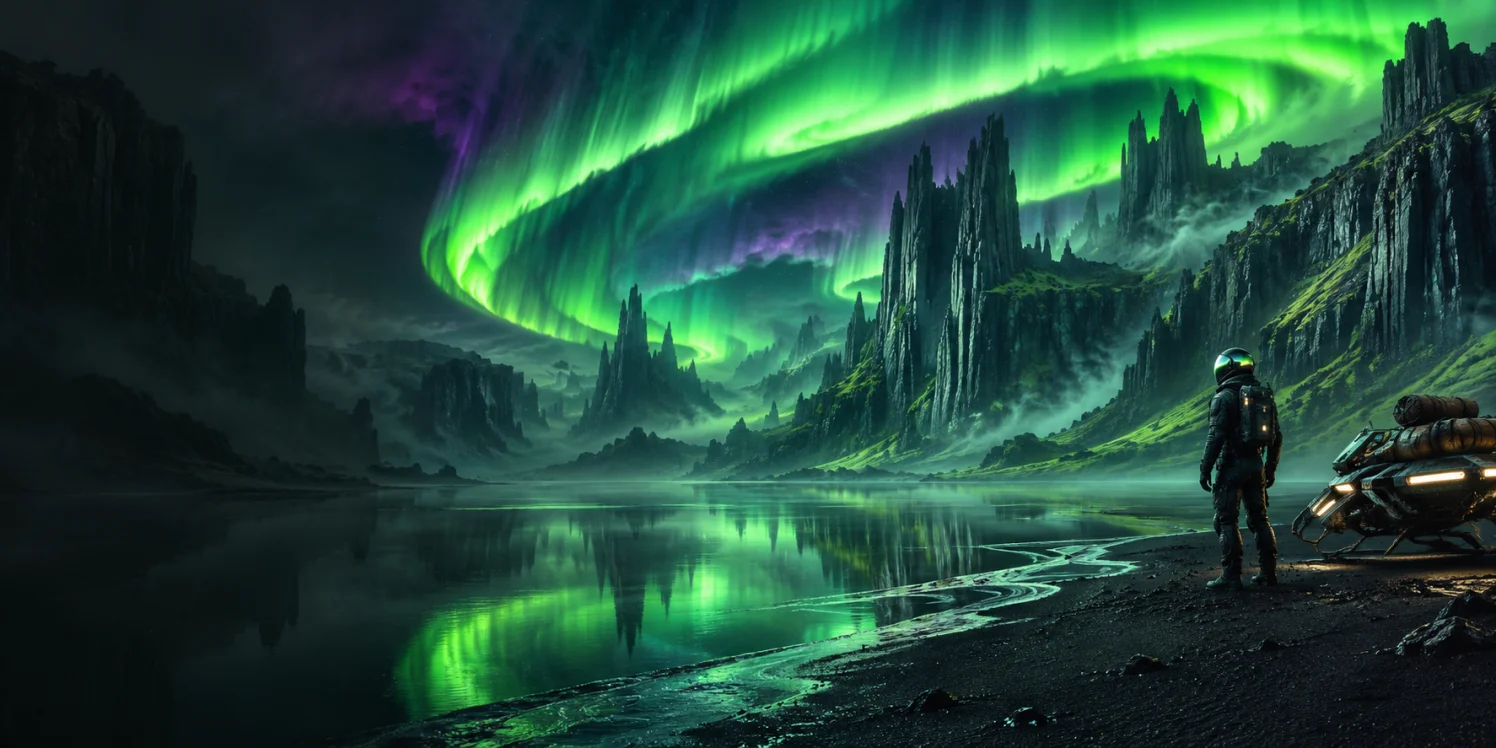
An explorer beside an aurora-lit mountain lake at night
Concept frame · Reference-guided landscape atmosphere study
  1. 01

    Lock the palette and framing first

    Upload a PNG, JPG, or WebP still as your starting frame. The studio preserves the composition, lighting direction, and horizon line as motion begins.

  2. 02

    Direct one clear subject action

    Name what moves first — wind sweeping across fabric, headlights turning into a wet bend, or a subtle camera dolly — instead of stacking conflicting camera moves.

  3. 03

    Check motion continuity against your frame

    Compare the first frame and final second back to back. Keep the same reference image and adjust only the verb or camera speed when revising.

Motion and lighting control

Keep the motion or shape the lighting

Compare fast kinetic camera tracking with controlled macro product lighting. Precise verbs keep silhouettes, reflections, and focal planes consistent.

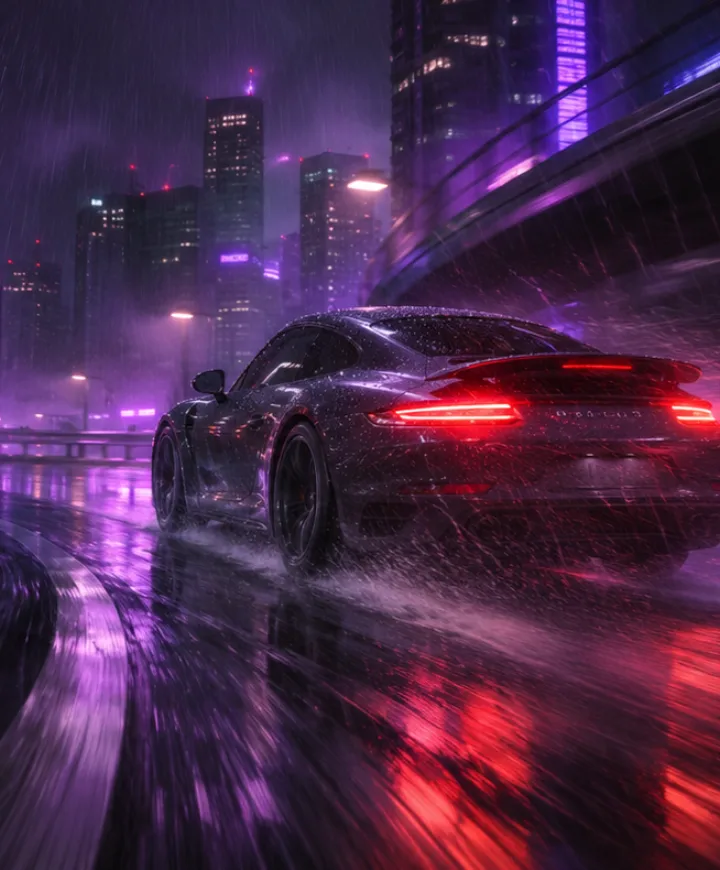
  1. A silver coupe sweeping around a wet city bend at night with neon reflections.
    Concept frame · Night tracking motion study
    1

    Direct night rain and camera speed from text

    Start from a clean scene description with explicit camera placement: rear low tracking, spray lifting off wet asphalt, and a steady focal lock on the moving chassis while city light blurs past.

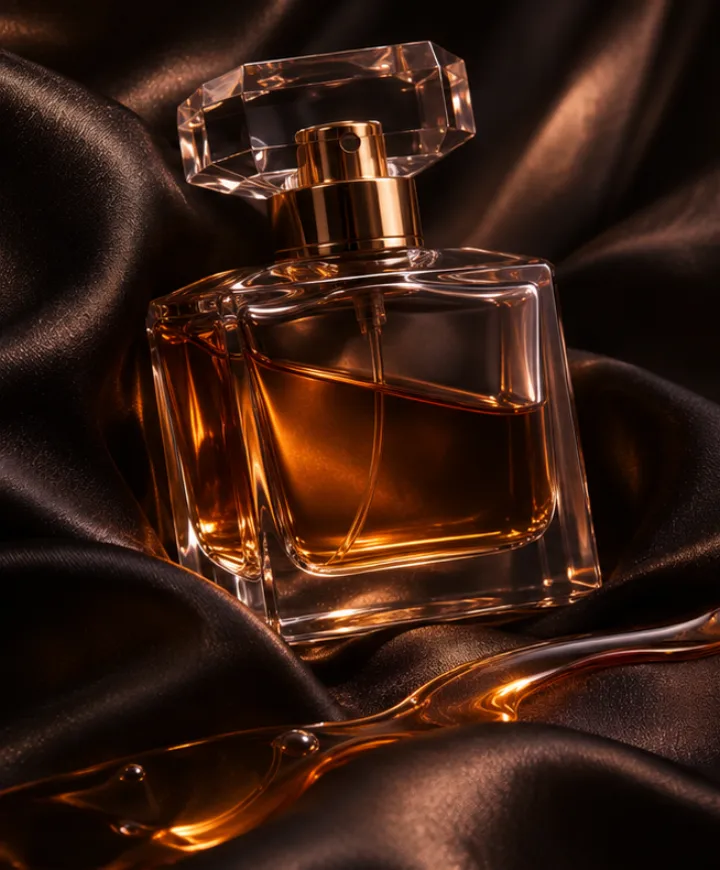
  2. An amber glass perfume bottle resting on folded dark silk under directional studio light.
    Concept frame · Macro glass and silk lighting study
    2

    Sculpt luxury product surfaces with subtle light

    Use a still reference or tactile material description to keep glass edges, specular highlights, and fabric folds clean while the camera orbits slowly around the hero object.

First take

Build a video brief you can revise

Decide the single visual moment a viewer must read on the first watch. A clear focal beat makes every subsequent revision faster and sharper.

  1. 01

    Set the frame

    Start with a clear text scene or upload a reference image when wardrobe, color palette, or product silhouette needs to stay locked.

  2. 02

    Write the order

    Use one concrete verb per beat — enter, pause, turn, push in. Clear sequence beats a long list of style adjectives.

  3. 03

    Check the quote

    Choose a model, length, and resolution. The studio calculates your exact credit total before you generate.

  4. 04

    Compare one change

    Reuse your saved settings and change only the camera move or pacing cue. Download watermark-free MP4 renders straight from My works.

Creative applications

Where to use Magi Studio in production

Choose the take by the decision you need to make — whether blocking camera placement for a pitch or testing product lighting in motion.

01

Pitch a scripted exchange

Stage a key dialogue moment before booking a shoot. Compare a wider two-shot with an intimate reaction framing to test which beat carries the scene.

02

Explore a campaign look

Upload a product still and test how dark studio reflections, drifting mist, or macro camera sweeps change perceived texture before production.

03

Plan a continuous transition

Preview sweeping architectural moves, dawn reflections, or atmospheric establishing shots that link two edits smoothly.

04

Prototype stylized animation

Test clay stop-motion textures, stylized lighting palettes, and quiet character micro-expressions in 5-second iterations.

Questions from creators

Creating and directing with Magi Studio

01

Can I start a scene with text alone?

Yes. Select a model and switch to Text to video. Describe the subject, camera motion, and lighting, then check the credit quote before generating.

02

When should I attach a reference image?

Attach a PNG, JPG, or WebP still (up to 10 MB) whenever a specific character, product silhouette, or color palette matters. The studio animates directly from that image.

03

How are video credits calculated and protected?

The exact credit price appears inside the composer before you submit. If a generation fails on the provider side, credits are automatically returned to your balance.

04

Can I generate with MAGI-2 here?

Yes. Choose MAGI-2 in the video model menu to generate from a prompt or reference image. You can also choose another model in the same studio and compare the credit quotes.

Magi AI pricing for your next project

Buy one-time credit packs with transparent per-clip quotes. No recurring lock-in — use credits across text-to-video and image-to-video at your own pace.

One-time purchase · Credits never auto-renew · Failed jobs refunded

Starter

$9.90
USD · one-time
1,000 credits · 100 credits ≈ $0.99

For exploring text-to-video and image-to-video drafts with transparent per-clip pricing.


What's included

  • 1,000 studio credits included
  • 3 MAGI-2 clips at 1080p · 5s
  • Exact credit quote shown before every run
  • Text-to-video & image-to-video modes
  • Private workspace history & MP4 export
  • Automatic credit refund on failed generations
Most Popular

Pro

$19.90
USD · one-time
2,200 credits · 100 credits ≈ $0.90

For creators publishing regular short clips with room to compare lighting and camera beats.


Everything in Starter, plus

  • 2,200 studio credits included
  • 7 MAGI-2 clips at 1080p · 5s
  • Save 9% per credit vs Starter pack
  • Text-to-video & image-to-video with optional sound
  • Private history & watermark-free MP4 downloads
  • Automatic credit refund on failed generations

Ultimate

$49.90
USD · one-time
6,000 credits · 100 credits ≈ $0.83
≈ 16 Flash clips (480p · 5s)

For teams and heavy creators running multi-take video sequences at the lowest credit cost.


Everything in Pro, plus

  • 6,000 studio credits included
  • 19 MAGI-2 clips at 1080p · 5s
  • Lowest cost per generated video
  • Text-to-video & image-to-video with optional sound
  • Private history & watermark-free MP4 downloads
  • Automatic credit refund on failed generations
For any questions about payment or credit packs, contact our support team: Contact support

Pay safely and securely with

MC
VISA
AMEX
Apple Pay
G Pay
UnionPay
JCB
DISCOVER

Next take

What happens in your next scene?

Open the video studio with a single visual beat in mind. Pick what moves first, add sound if the shot calls for it, and check your exact quote before rendering.